Process Scheduler
An inbuilt tool that allows users to automate and manage processes by defining when and how often they should run. It supports flexible recurrence patterns and integrates with calendars to ensure that the processes are mindful of the holidays and business off days
My Role:
Duration:
1.5 Months
Team:
Tools Used:
What we achieved
How system used to work
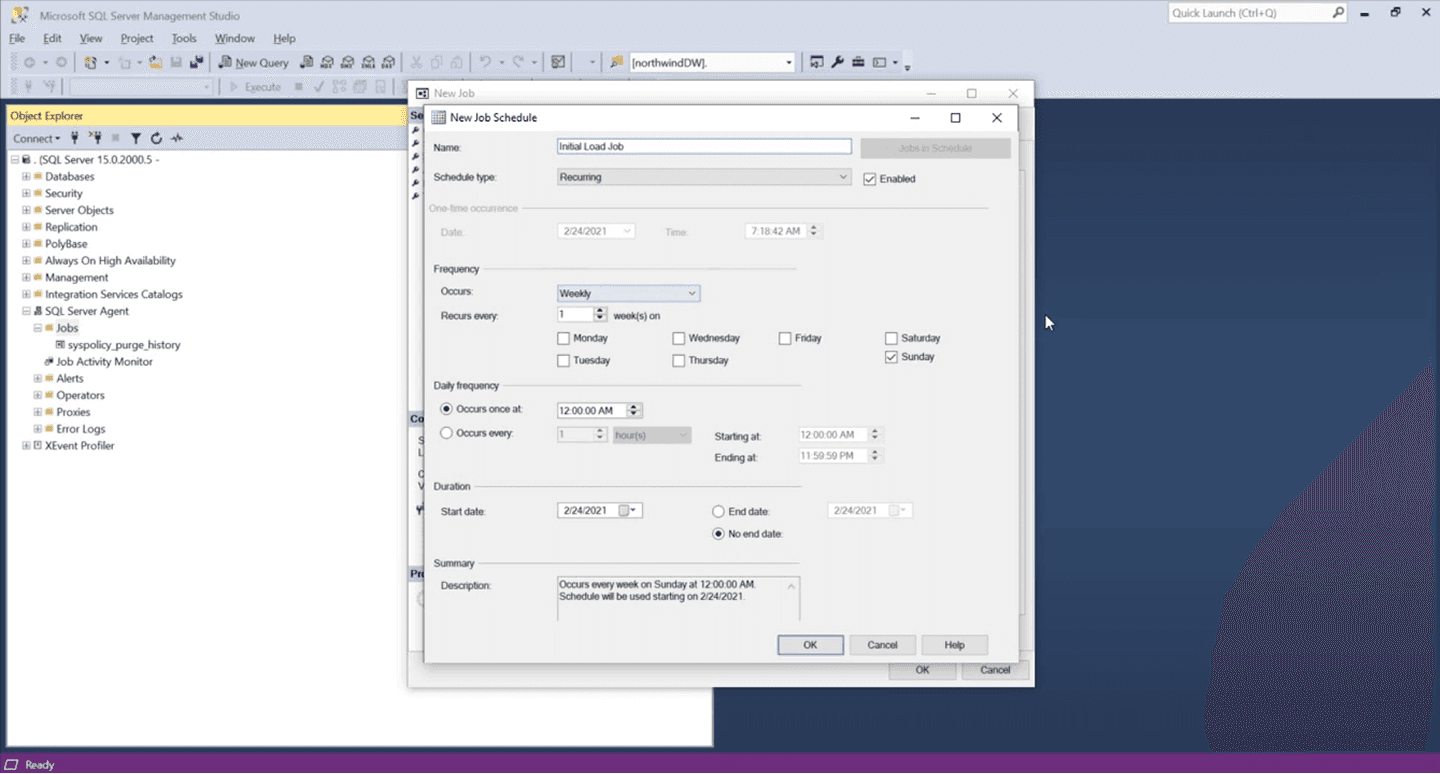
All processes were scheduled directly within SQL Server Management Studio (SSMS) by the technical team. Monitoring and tracking of these jobs were also handled within SSMS, making the entire workflow dependent on technical expertise and limited to backend access
Addressing the problem
Heavy SSMS dependency for scheduling, and manual adjustments for holidays and business off days
The existing system presented multiple challenges that made scheduling and monitoring processes inefficient, highlighting gaps in flexibility and ease of use
Identifying the core needs
Enable users to schedule processes without manual adjustments for business days and holidays
Provide real-time visibility into process progress, and access to detailed logs for troubleshooting
Moving away from SSMS

With the system transitioning to a service-based architecture, processes are now defined within individual services. From the UI, users can simply select a process, configure its schedule, track progress of individual processes and examine logs once complete
Designing the scheduling experience
Approach 1 - Using data tables to setup schedules
We explored a grid layout where each row is a calendar, allowing events with exclusion dates for holidays or non-business days
" width="32px"><path d="M 29.278 9.753 C 29.982 9.753 30.612 10.027 31.168 10.573 C 31.724 11.12 32 11.739 32 12.432 L 32 14.474 C 31.997 14.812 31.933 15.146 31.813 15.463 L 27.214 26.2 C 26.963 26.732 26.556 27.178 26.046 27.482 C 25.547 27.813 24.959 27.993 24.357 28 L 10.559 28 C 9.806 28 9.164 27.739 8.634 27.217 C 8.114 26.719 7.826 26.033 7.839 25.319 L 7.839 10.866 C 7.839 10.51 7.913 10.161 8.063 9.824 C 8.203 9.502 8.405 9.208 8.655 8.959 L 17.337 0.479 C 17.564 0.253 17.853 0.098 18.168 0.031 C 18.461 -0.032 18.767 0.002 19.038 0.129 C 19.313 0.257 19.51 0.462 19.628 0.748 C 19.75 1.053 19.773 1.389 19.695 1.708 L 17.962 9.753 L 29.28 9.753 Z M 2.722 28 C 1.968 28 1.324 27.739 0.795 27.217 C 0.276 26.719 -0.012 26.033 0 25.319 L 0 12.432 C 0 11.691 0.265 11.059 0.795 10.536 C 1.3 10.025 1.996 9.741 2.72 9.753 L 3.433 9.753 C 4.187 9.753 4.829 10.014 5.359 10.536 C 5.888 11.059 6.154 11.691 6.154 12.432 L 6.154 25.352 C 6.154 26.094 5.888 26.721 5.359 27.232 C 4.85 27.735 4.154 28.013 3.433 28 L 2.72 28 Z" fill="rgb(29, 77, 32)" height="27.99999962639909px" id="OYyVFnta9" transform="translate(0 0)" width="32px"/></g></svg>)
Easy to understand for existing users since it follows a familiar pattern
" width="29.999999601384353px"><path d="M 2.55 17.595 C 1.89 17.595 1.301 17.331 0.782 16.805 C 0.261 16.277 0 15.679 0 15.01 L 0 13.043 C 0.003 12.717 0.063 12.395 0.175 12.09 L 4.487 1.736 C 4.704 1.243 5.068 0.831 5.582 0.498 C 6.051 0.18 6.601 0.007 7.165 0 L 20.102 0 C 20.807 0 21.409 0.252 21.906 0.755 C 22.404 1.259 22.652 1.869 22.652 2.584 L 22.652 16.522 C 22.637 17.212 22.363 17.87 21.886 18.361 L 13.746 26.537 C 13.534 26.755 13.263 26.905 12.968 26.97 C 12.693 27.031 12.406 26.998 12.152 26.876 C 11.899 26.756 11.701 26.542 11.599 26.279 C 11.485 25.984 11.463 25.661 11.536 25.353 L 13.161 17.595 Z M 27.45 0 C 28.156 0 28.757 0.252 29.255 0.755 C 29.752 1.259 30 1.869 30 2.584 L 30 15.012 C 30 15.727 29.752 16.336 29.255 16.84 C 28.782 17.333 28.129 17.606 27.45 17.595 L 26.781 17.595 C 26.075 17.595 25.473 17.344 24.976 16.84 C 24.489 16.361 24.219 15.698 24.231 15.01 L 24.231 2.553 C 24.231 1.838 24.48 1.234 24.976 0.741 C 25.453 0.256 26.105 -0.012 26.781 0 Z" fill="rgb(84, 19, 19)" height="26.999999381488955px" id="OR8tjUMMX" transform="translate(0 0)" width="29.999999601384353px"/></g></svg>)
No clear view of time and patterns, making schedules harder to understand at a glance
Difficult to spot overlaps or conflicts between processes
Not a widely used pattern for process scheduling, so it may feel unintuitive to new users
Approach 2 - Adopting a Calendar-First experience as a scheduling layer
In this approach, a calendar-based interface similar to tools like Google Calendar and Outlook is used to create schedules, which are then selected while setting up a process, without any tracking or status visibility
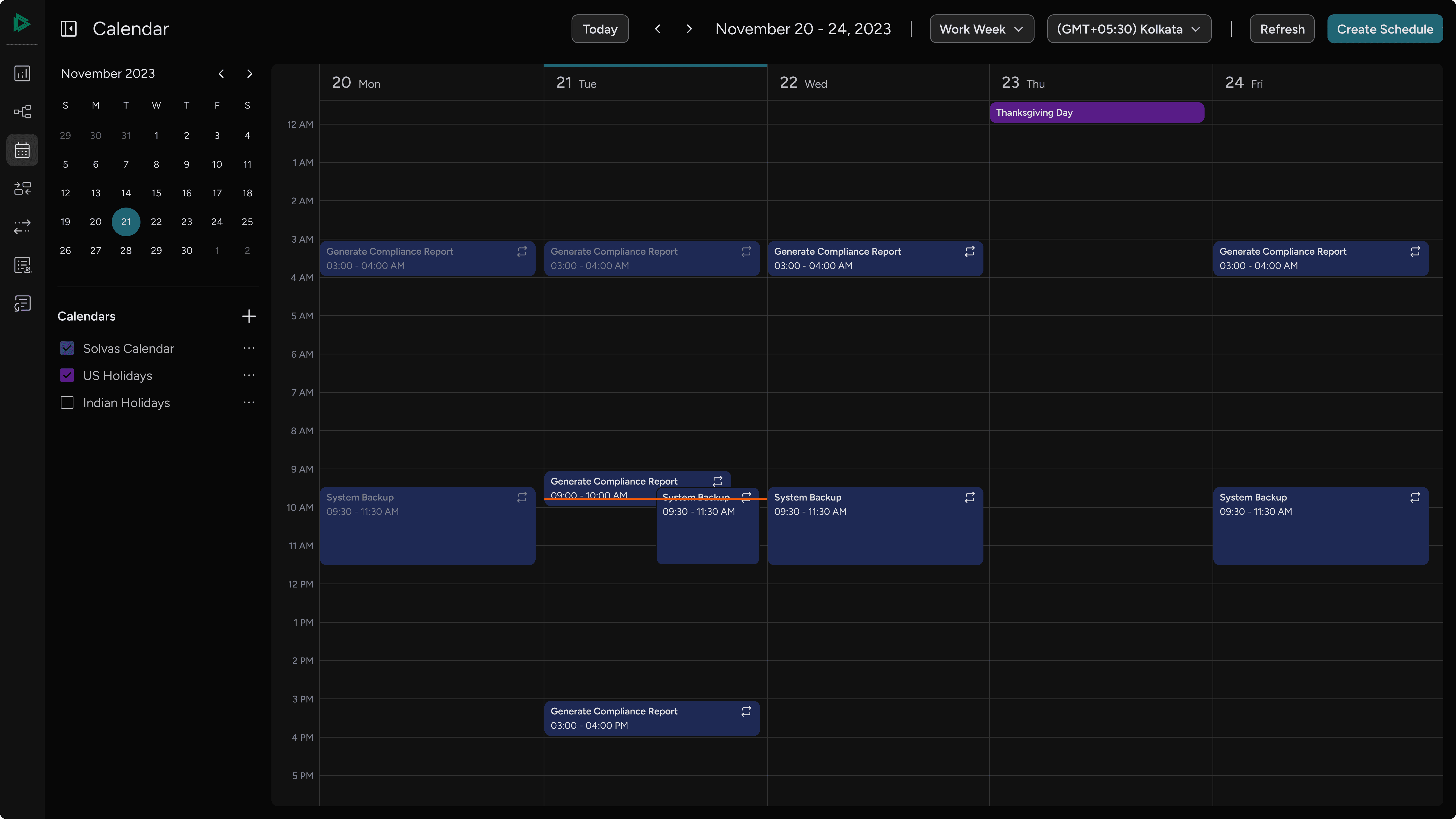
Simpler and faster to implement with lower complexity
Requires a two-step flow, making scheduling less efficient
No visibility into process status within the calendar
Breaks context by separating scheduling and monitoring
Approach 3: Unified scheduling & tracking experience
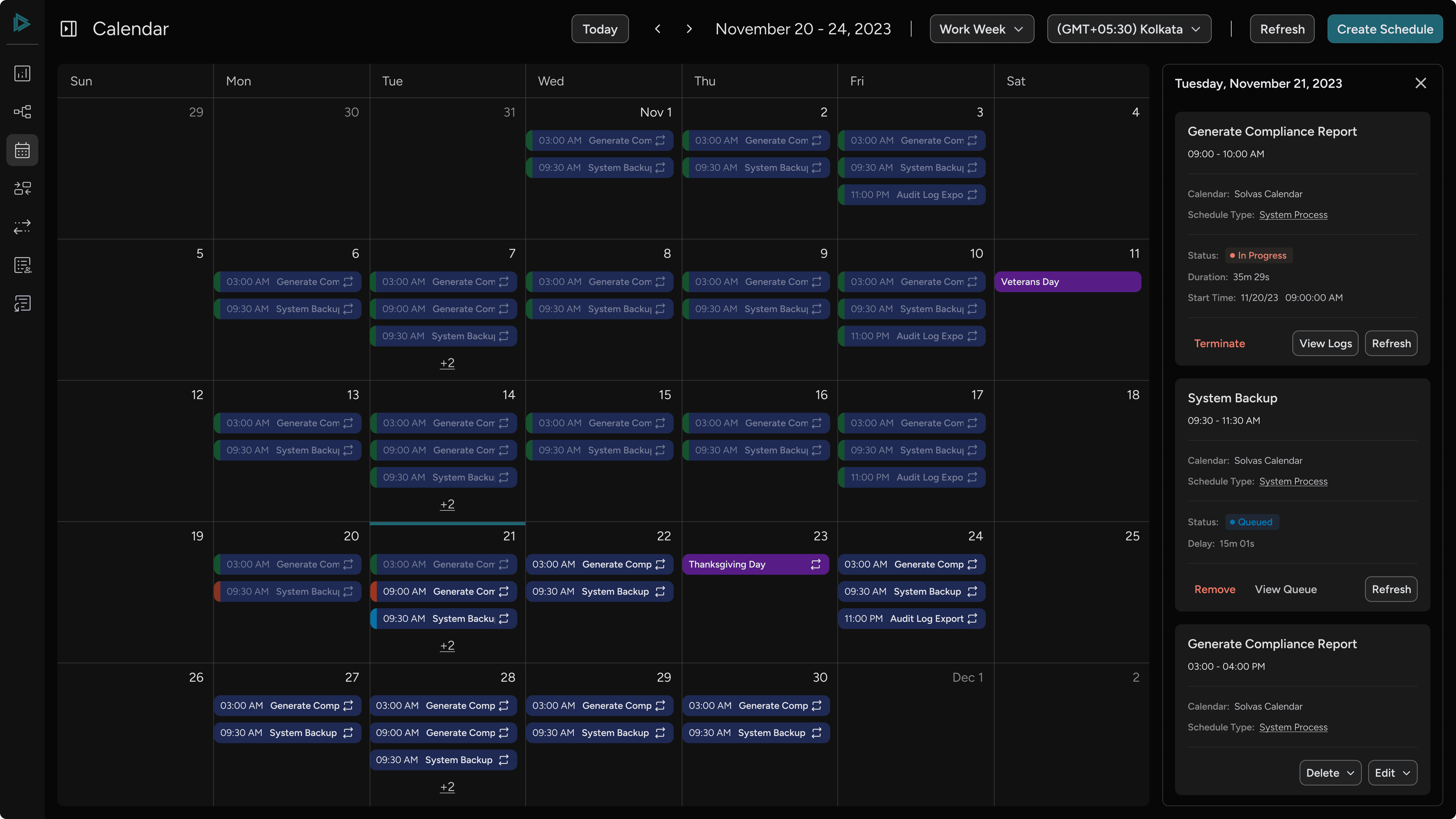
The calendar is designed as a single interface where users can create processes, set schedules, and track real-time statuses, bringing everything into one place
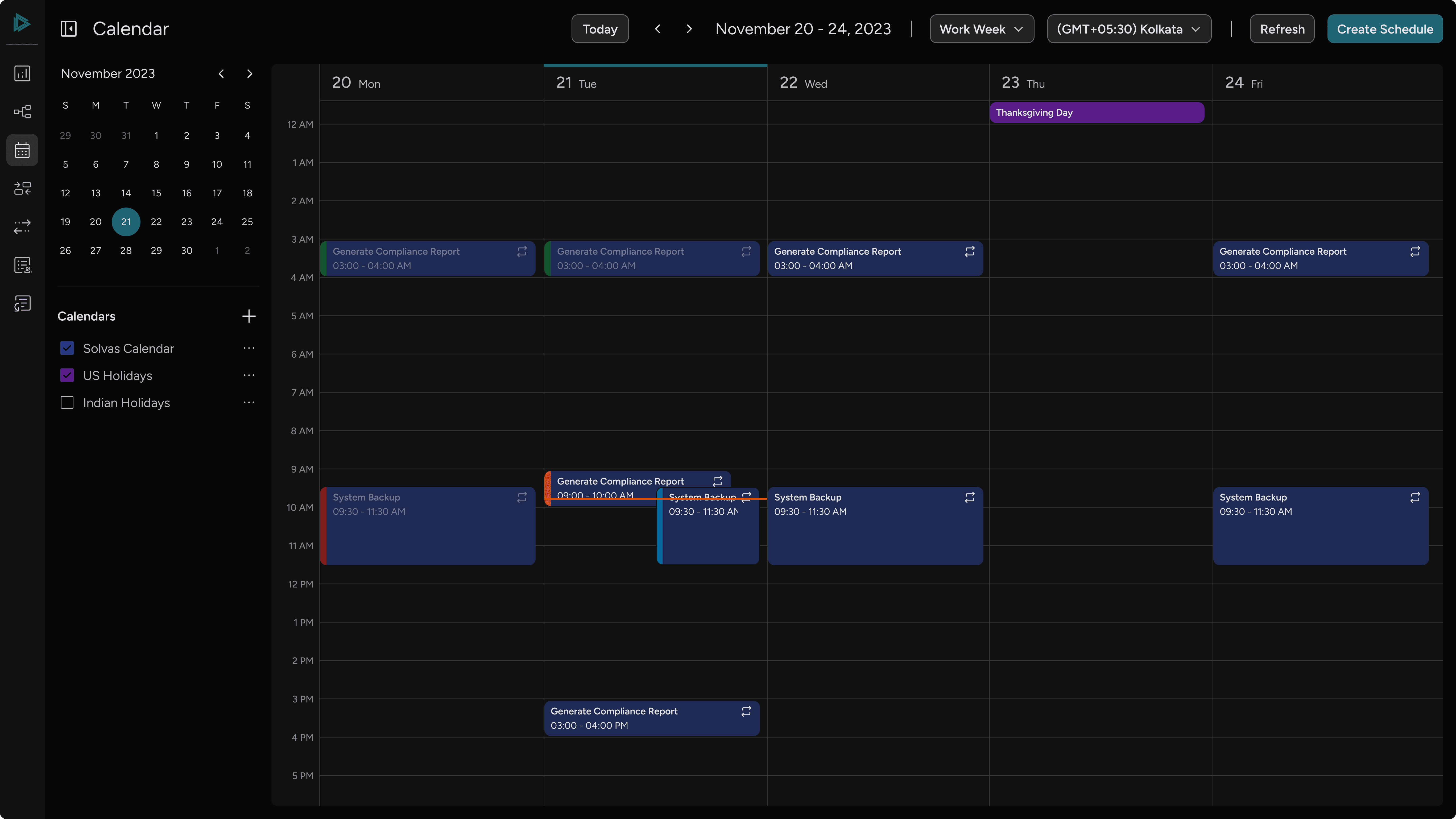
Enables users to schedule processes directly within the calendar, reducing steps and effort
Provides real-time visibility of process status in the same view
Allows better understanding of overlaps, timelines, and overall system activity
More complex to design and implement, requiring additional time and effort
Finalizing the approach
We chose Approach 3 as it brings scheduling and tracking into a single, intuitive experience, reducing user effort and context switching while providing better visibility and control. The system includes default system Calendar and user-created calendars, where all the processes are created in former, and latter ones are used to manage overlaps
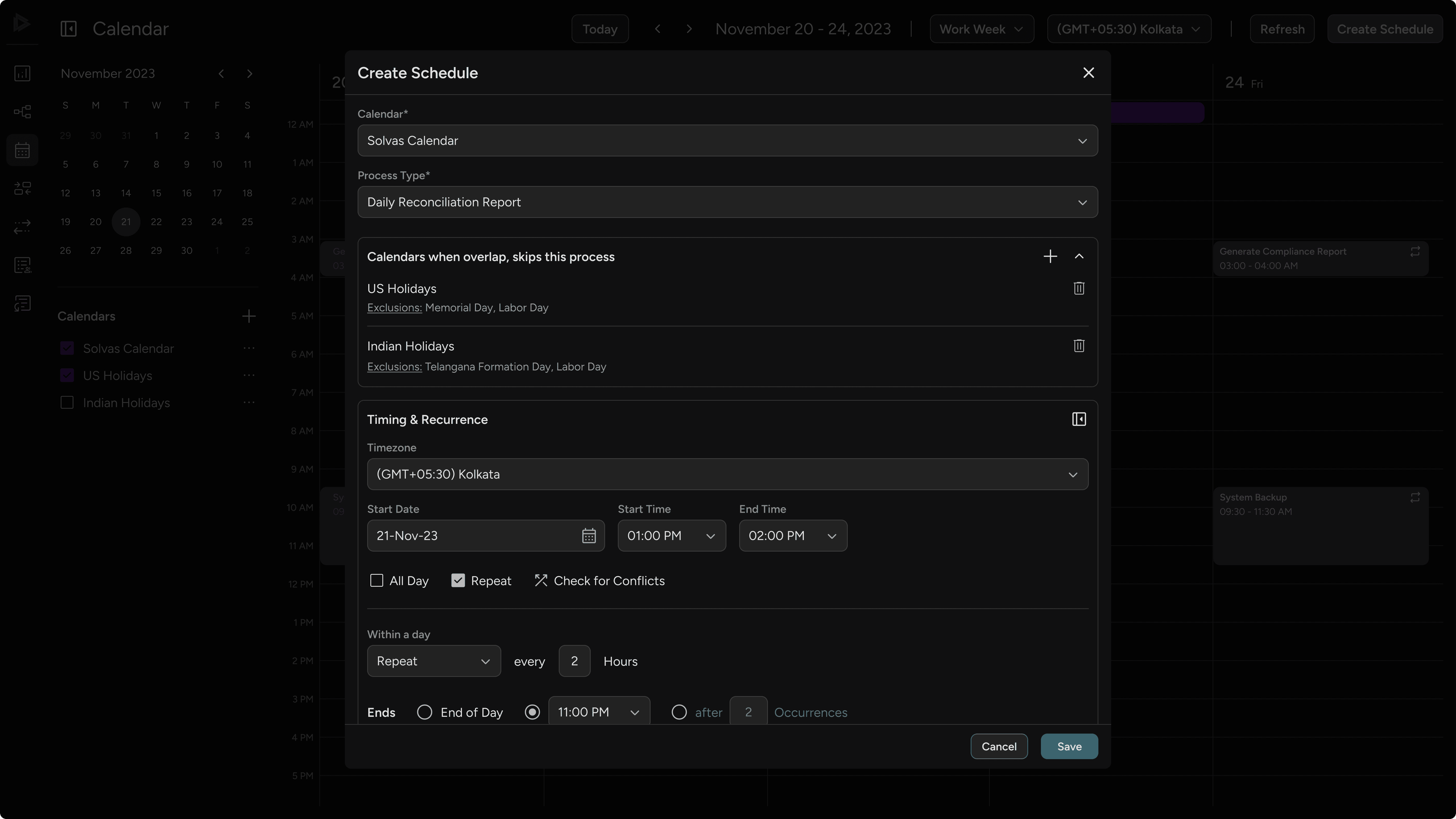
Setting up a schedule in a default calendar
Creating a schedule is a simple three-step process - selecting the calendar and process type, choosing overlapping calendars to skip conflicts, and defining timing and recurrence
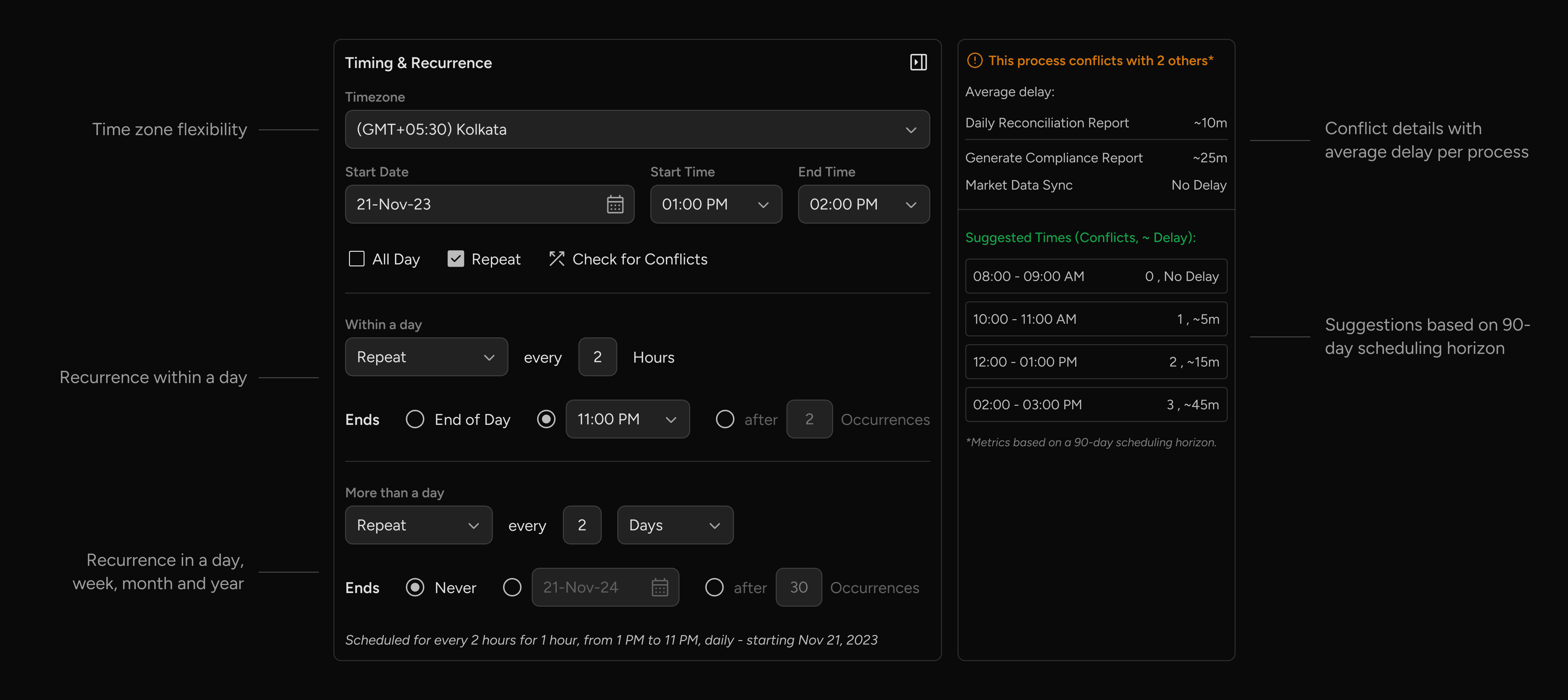
Event setup in user-created calendars
User-created calendars are typically used to define exceptions, such as business off days or maintenance windows - where processes should not run. Events in these calendars are managed as all-day entries, ensuring processes automatically skip them when overlaps occur
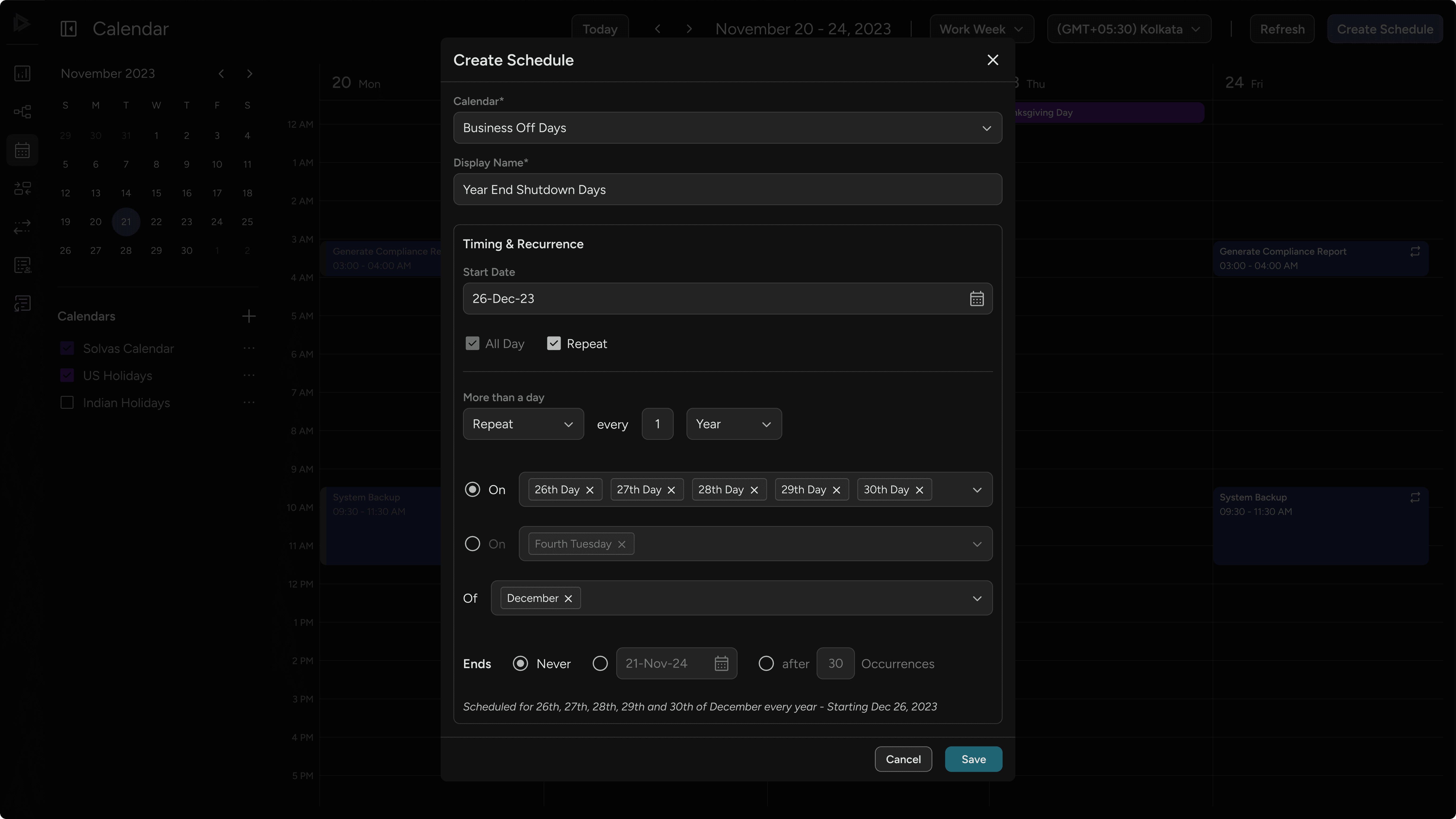
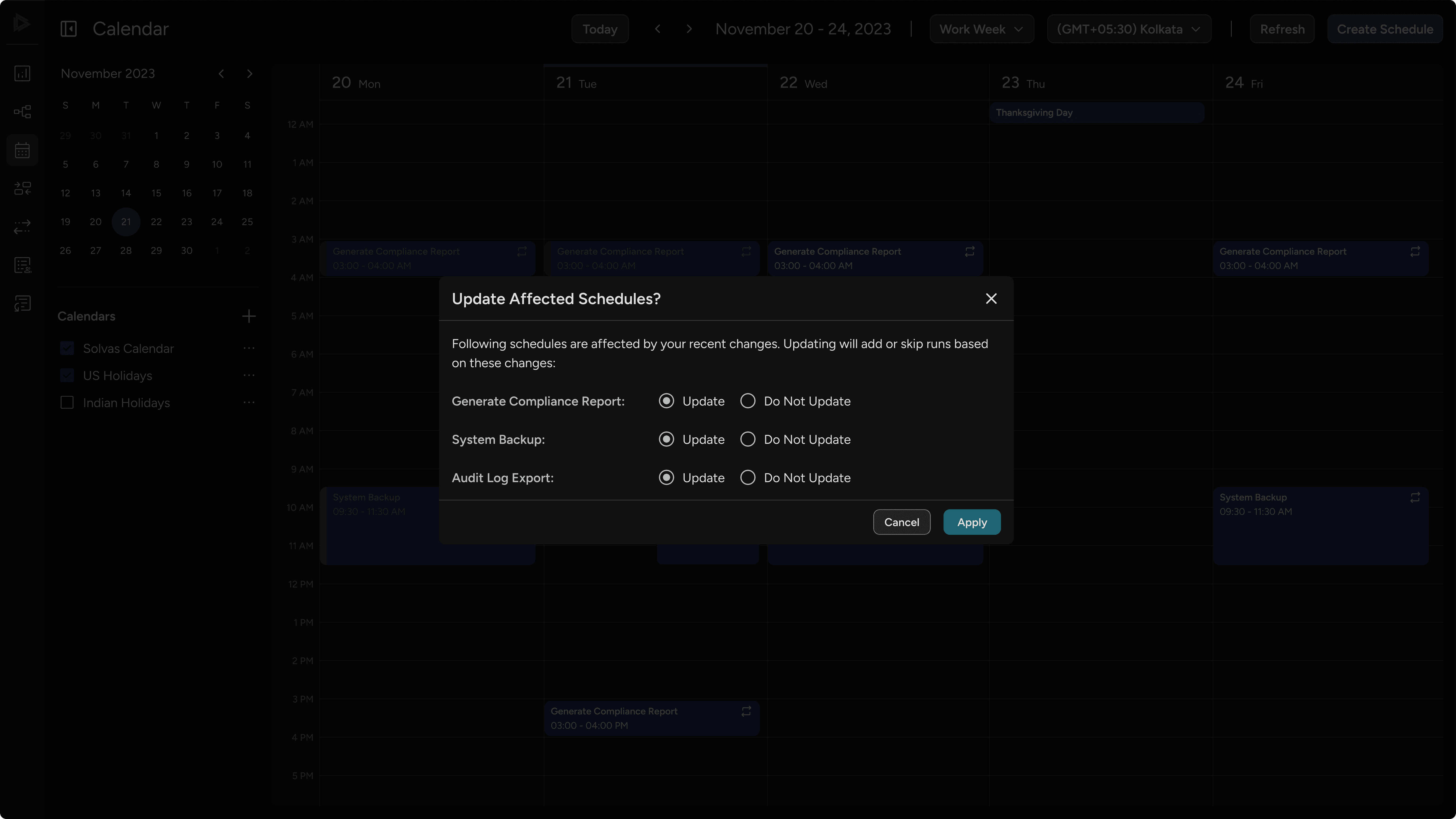
When events in user-created calendars are updated or deleted, users are given the option to apply those changes to affected schedules
Visualizing overlapping processes
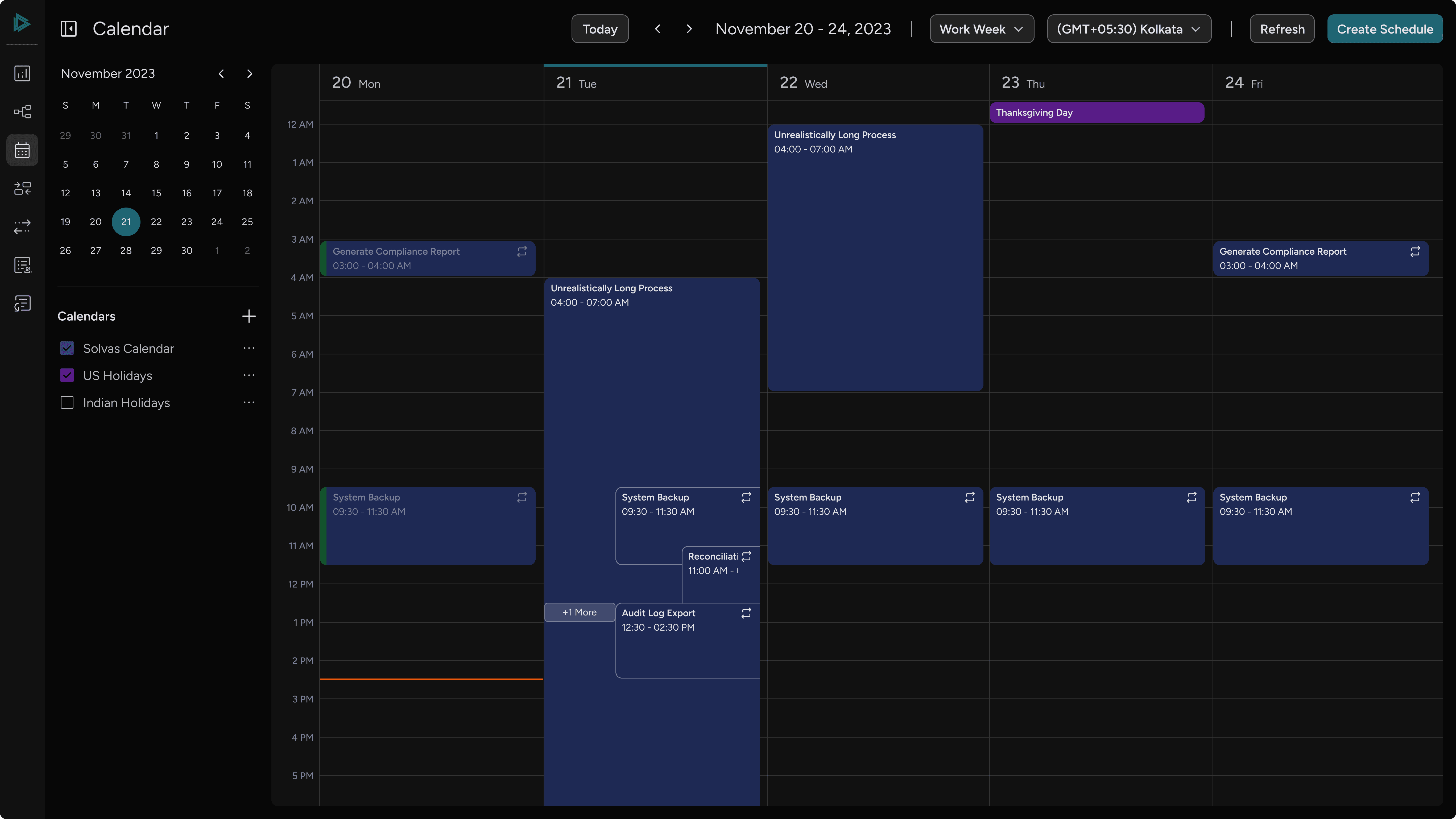
Using the FullCalendar library, overlapping events are displayed with slotEventOverlap:true and limited to three visible layers using eventMaxStack:3. Additional overlapping events are grouped under a “+N more” option to keep the view clean and easy to scan
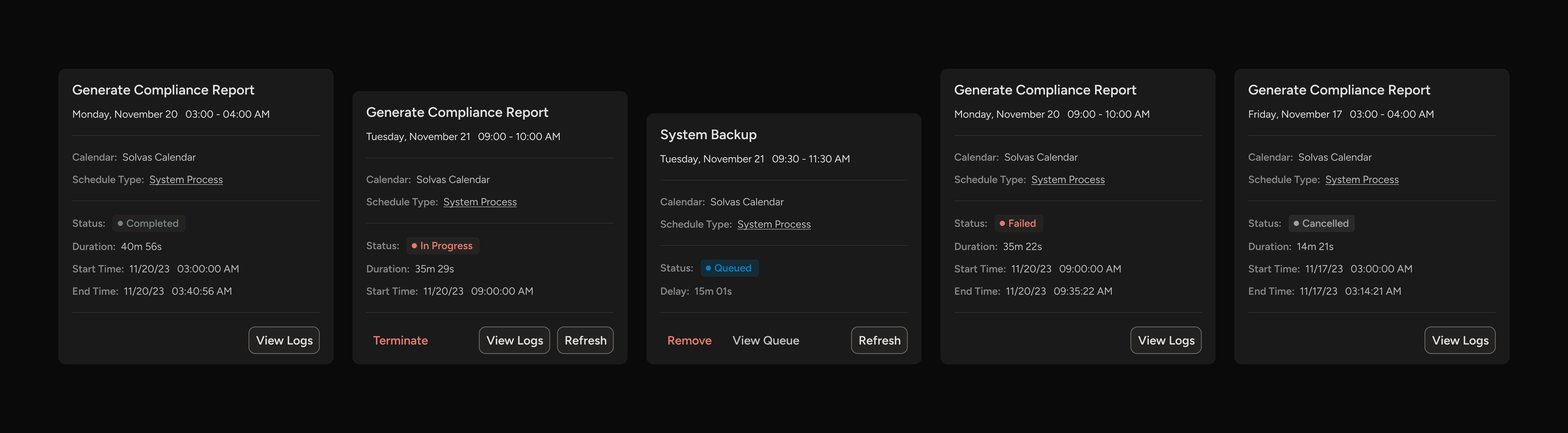
Tracking process statuses
The calendar also acts as a monitoring tool, displaying processes in different states. Users can tap on any event to view more details, making it easy to understand process activity at a glance